How to Schedule an Appointment
There are two ways to make an appointment through WC Online. The first, is via the calendar feature (default); the second is through the search feature.
How to make an appointment on WC Online (Calendar)
- When you have registered an account, log in using your email and password
- You will automatically be taken to the schedule page (calendar view)
- White slots are when a tutor is available! To make an appointment click on a white box.
- Please note: MWF and Sun appointments start on the hour (:00), whereas TR appointments start on the half-hour (:30).
- Please note: MWF and Sun appointments start on the hour (:00), whereas TR appointments start on the half-hour (:30).
- Once you’ve selected a time slot, sign up for an appointment. Appointments are 50 minutes long (1 hour time slot). Complete the intake form, letting the tutor know what you want to cover in your session. Click “Create Appointment” and you’re ready to go!
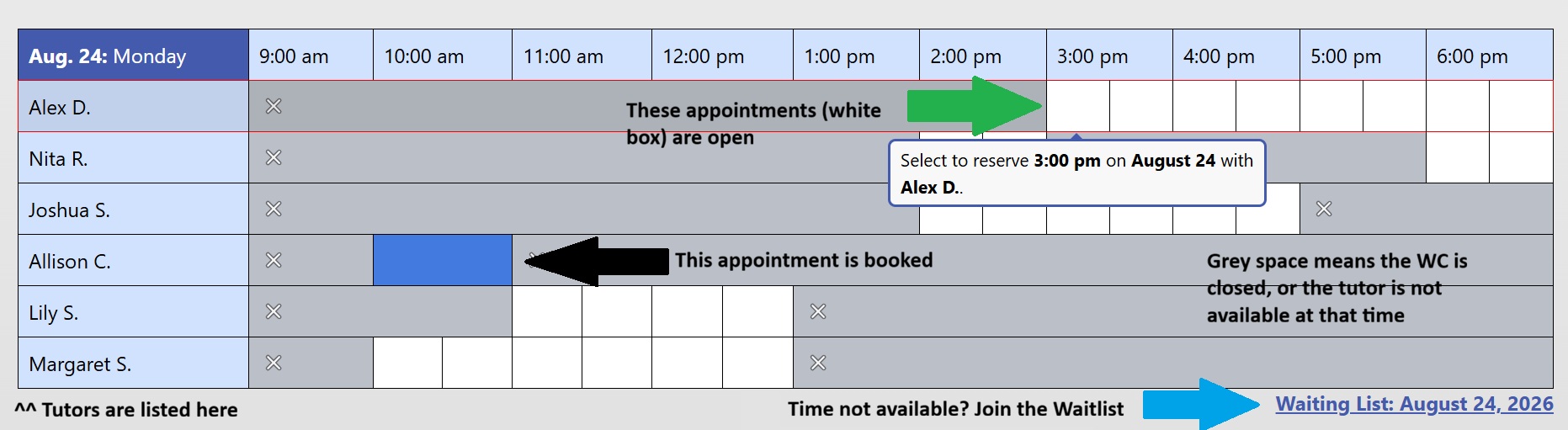
- Not seeing the appointment time you want? Click the waitlist for the day you’re looking to get an appointment, and you’ll be notified if something opens up.
How to make an appointment on WC Online (Search)
- When you have registered an account, log in using your email and password
- You will automatically be taken to the schedule page (calendar view)
- Click “Appointment Search” (blue box, upper right hand corner)

- Choose your preferred date and time from the drop down menu and click “Find appointments” (blue box)
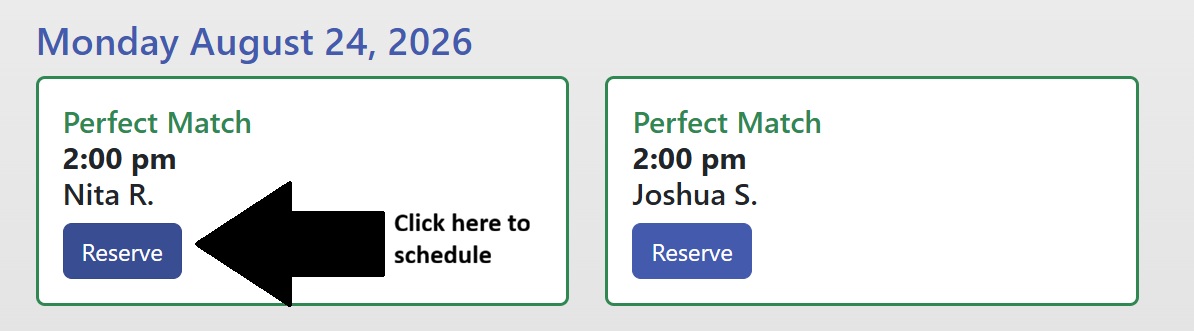
- Your closest matches will appear at the top of the screen in green; near-matches will appear below those.
- Click “Reserve” (blue box) to reserve an appointment with that tutor at that time.
- Please note: MWF and Sun appointments start on the hour (:00), whereas TR appointments start on the half-hour (:30).
- Complete the intake form, letting the tutor know what you want to cover in your session. Click “Create Appointment” and you’re ready to go!