Canva Pro for Faculty/Staff
Xavier is happy to announce that Canva Enterprise (Pro) is now available.
Canva Free vs. Canva Enterprise Features (PDF)
Students: All students will have a free Canva Pro account.
A limited pool of Pro accounts are funded by Sustaining Excellence for Xavier faculty and staff. Requested accounts are not automatically approved; they will be reviewed to ensure fair distribution across departments.
If an SE-funded license is unavailable please consider the following options:
-
Department-funded Pro seats – If your department would like to fund additional Enterprise Pro licenses, we can request more seats as part of the Xavier Canva account. We’re happy to discuss pricing and turnaround time if this is something you’d like to pursue, just let us know in the request form below.
-
Free Canva accounts – A free account may meet your needs, and it can still collaborate with Pro and student accounts but in different ways. You can also use Pro templates and assets if they are shared with you by a Pro user. Please note that free accounts do not use Xavier SSO, and we cannot provide technical support with passwords, locating or transferring content, etc.
- Please discuss with us if you plan to integrate Canva into a Canvas course or assignment, so we can help you consider the differences between this account type and Enterprise.
-
Individual or Team plans through Canva – You are also welcome to create a personal paid Canva Pro account or a Canva Team directly with Canva. These accounts would be separate from the Xavier Enterprise environment and managed directly by you/your team. Please note that outside Canva accounts do not use Xavier SSO, and we cannot provide technical support with passwords, locating or transferring content, etc.
-
Please discuss with us if you plan to integrate Canva into a Canvas course or assignment, so we can help you consider the differences between this account type and Enterprise.
-
Login with your Xavier email
Important - Before clicking this link to get Canva Pro for the first time, please make sure you’re logged out of any other Canva account(s).
Groups: Canva Groups can be used to collaborate with other Pro users on individual projects. Learn more about Groups in the FAQ section.
Request a Canva Group

Canva Design Doctor
Need a fresh set of eyes on your Canva design? Share your Canva file with us - we will make a copy and send you a polished version.
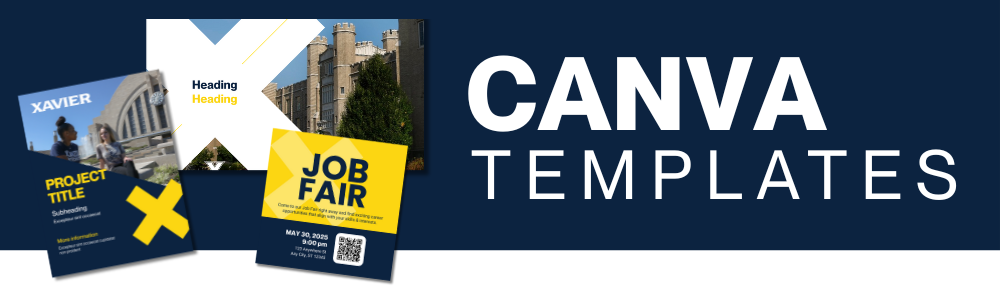
Canva Templates
Once you establish your Canva account, you'll have access to Xavier's catalog of Canva templates including designs for flyers, presentations, social media, and more.
Students may contact the Digital Media Lab, and employees may contact Digital Media Services for assistance.
Canva Training & Support
FAQ
Canva Pro offers more features, premium content, and collaboration tools than the free version, making it a more powerful option for creating professional designs. See: Pro vs Free Details
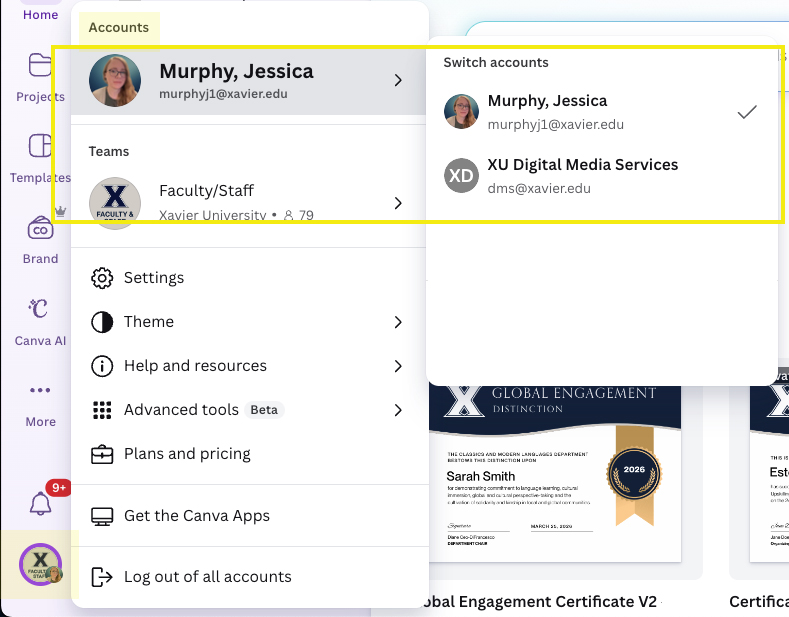
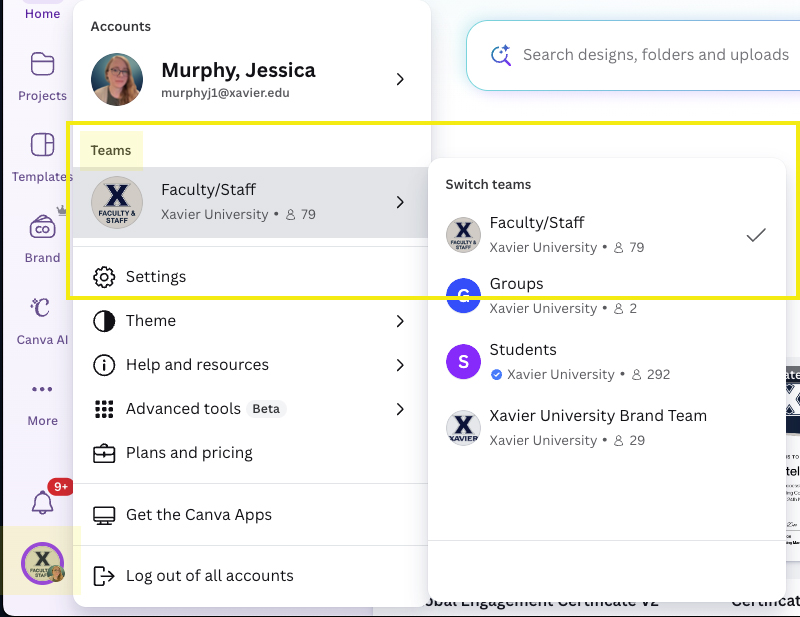
To navigate between teams, click on the XU circle (bottom left of the Canva homepage), then see and select the Account or Team you would like to work in. Different teams may offer different assets, features, or limitations.
Switching Accounts:
Switching Teams:
Canva Groups are a simple way to share designs and collaborate with specific people. Instead of sharing a project with individuals one by one, you can share it with a Group, giving everyone in that Group access at once.
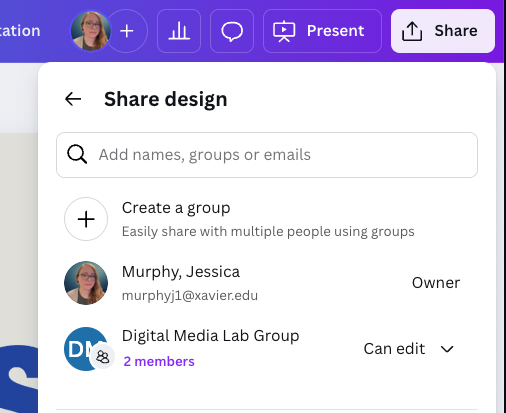
Groups are used only for sharing and collaboration; they don’t create a separate workspace or Brand Kit (those are available only at the Team level). Members can view and edit shared projects directly within their own accounts.
Users with free Canva accounts can also collaborate on shared projects, but they’ll be added individually to each project rather than through the Group itself.
Yes. You can collaborate on a project with someone who has a free Canva account. Any Pro fonts, images, or elements already in the shared design will stay available and won’t be watermarked.
If the free account holder adds a new Pro image or element, it will appear watermarked for them, but it will not be watermarked for others in the same shared project who have access through a Pro or Campus account.
To share a project in Canva: Open that project, click on the Share button, and then type that users email into the "People with Access" field.
- Go to Canva.com and click on the purple question mark (bottom right on the page)
- Type 'refund' to the Canva Chat Support Bot, and it will bring up any charges to your account that can be refunded.
- If the bot cannot process a refund it should guide you to next steps below:
- Navigate to Contact CHT
- Issue category > Payments, pricing and billing
- Issue > I want to request a refund for my plan
- Select the applicable invoice
- Refund request reason > None of the above
- Describe the issue > “Hi Canva Support, can you cancel my personal Canva subscription? I am joining my employer’s enterprise account. Can you please provide a refund for any outstanding balances?
Accessibility settings in Canva (such as alt text) only impact digital content; for example, websites, LMS content, email attachments, and PDFs that are shared electronically. Printed materials are not affected by alt text.
In order to make your Canva content accessible to users with visual disabilities, you’ll need to take one of the following steps:
- Export your content as a PDF (PDF Print recommended)
When exporting, choose PDF Print for the best quality.
Be sure not to select the checkbox that reads Flatten PDF. Flattening the PDF converts text into images, which prevents screen readers from reading the content.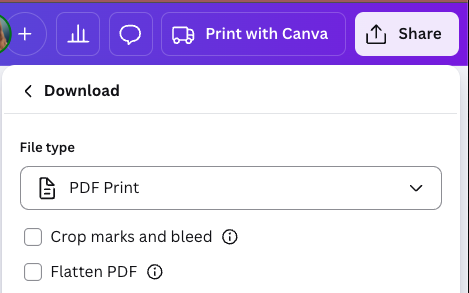
- Provide a comparable text-based alternative
If your design will be shared as an image or in a format that cannot support accessible text, include a written alternative that communicates the same information. Right-click on an image and choose "Alternative Text".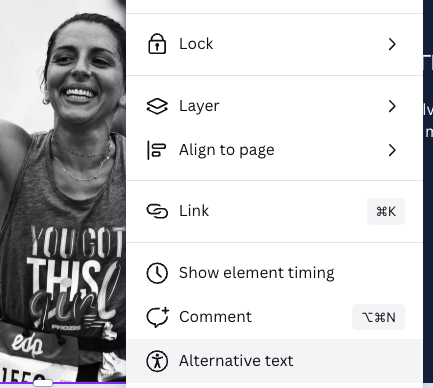
- Social media example
Content posted for social media is often exported from Canva as a JPEG image. Because images alone are not accessible to screen readers, you’ll need to write a manual summary of your design in the post caption or description. You don’t need to provide a verbatim transcript, but include enough detail for users to understand the main message. Avoid using decorative fonts in the written description, as they can be difficult or impossible to read with assistive technologies.