Canvas IgniteAI
IMPORTANT: Please read our GenAI Best Practices page before using this generative AI tool with course work.
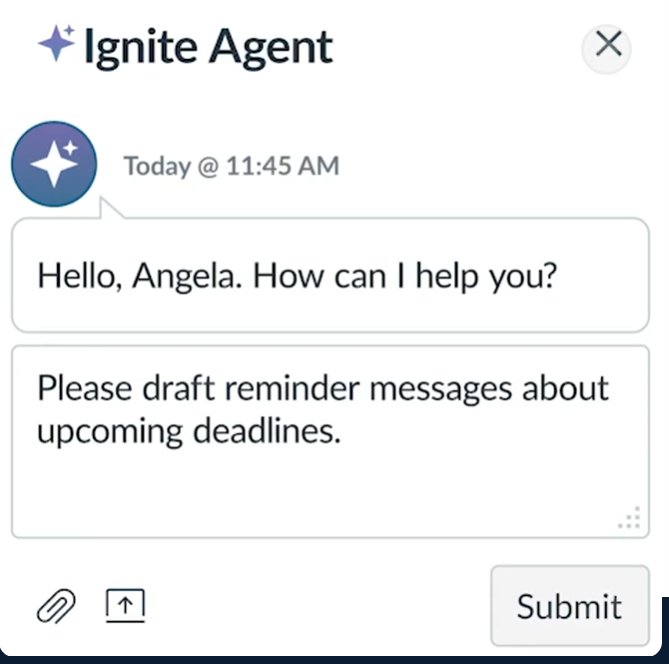
Xavier faculty now have access to the IgniteAI Agent, a new AI-supported assistant available directly within Canvas. The agent can help faculty create and revise course elements within their Canvas course, including things like drafting assignments and discussion prompts, building module structures, and clarifying assignment instructions.
The tool is designed to save time on routine course-building tasks while also acting as a design partner that can help strengthen course quality and support new approaches to teaching and learning while faculty remain fully in control of all decisions about how suggestions or updates are used in their courses.
ACCESS THE IGNITEAI AGENT
To access the IgniteAI Agent, log in to the Canvas Beta environment using your Canvas credentials here: https://xu.beta.instructure.com - Please note that students do not have access to the Beta environment.
Once you have logged into Beta, Click on the IgniteAI button at the top of Canvas to begin using IgniteAI in your course.
ABOUT THE CANVAS BETA ENVIRONMENT
The Beta environment is used by Canvas to showcase and test new features from the Canvas Community. It is separate from the standard production Canvas environment you use regularly at: https://canvas.xavier.edu
Key considerations:
- The Beta environment is reset weekly (typically every Saturday; exact timing may vary).
- Any changes made in Beta before the reset will be permanently lost.
- This environment is intended for testing, not long-term content storage.
PRESERVING YOUR WORK
To avoid losing any work you would like to retain in Beta, it is recommended that you export your course content by the end of the day on Friday.
Steps to Export Your Course (from Beta):
- Go to Settings in your course.
- Click Export Course Content.
- Select Create Export.
- Download the resulting
.IMSCCfile to your computer.
IMPORTING INTO AN EXISTING BETA COURSE
NOTE: Only complete this step if you need to restore content from your Beta backup.
After exporting your course from Beta, you may import specific content as needed into any courses you teach in the Canvas Beta environment: https://xu.beta.instructure.com
To avoid overwriting or duplicating existing content, import only what is necessary rather than importing the entire course.
Steps to Import Your Course (into Beta):
- Log in to https://xu.beta.instructure.com
- Open your course.
- Go to Settings.
- Click Import Course Content.
- Upload your
.IMSCCfile. - Complete the import process.
GETTING STARTED WITH THE IGNITEAI AGENT
To begin using the agent, select the pre-loaded “What Can You Do? How Can You Assist Me with My Tasks in Canvas?” prompt button, or enter your own request.
You can ask the agent to assist with tasks such as:
- Generating content
Example: Generate two discussion prompts based on the Module 3 Overview page. - Reviewing course alignment
Example: Review all assignments, quizzes, and discussions in the course and identify any outcomes that are not being assessed.
(Note: You will need to copy and paste your course outcomes into the prompt.) - Updating course settings
Example: Extend the due date for all assignments in Module 3 by two days.
DEMONSTRATION VIDEO
DEMO / TRAINING VIDEOS
GUIDES
- Getting Started with the IgniteAI Agent
- How to Write a Great Prompt for the IgniteAI Agent
- What IgniteAI Agent Can’t Do
- Canvas Guides on Using IgniteAI
WHERE TO GET HELP
- Instructional Design and Technology Events and Workshops
- ID&T Faculty Consultations and Support Request Form
COST
IgniteAI Agent will be available at no cost for U.S. Canvas customers through June 30, 2026. Pricing info is not yet available, but there will be a free and paid version of IgniteAI.
ACCOUNT NEEDED
Only your Canvas account is needed. Login to Canvas with your Xavier credentials in the Beta instance of Canvas here: https://xu.beta.instructure.com/