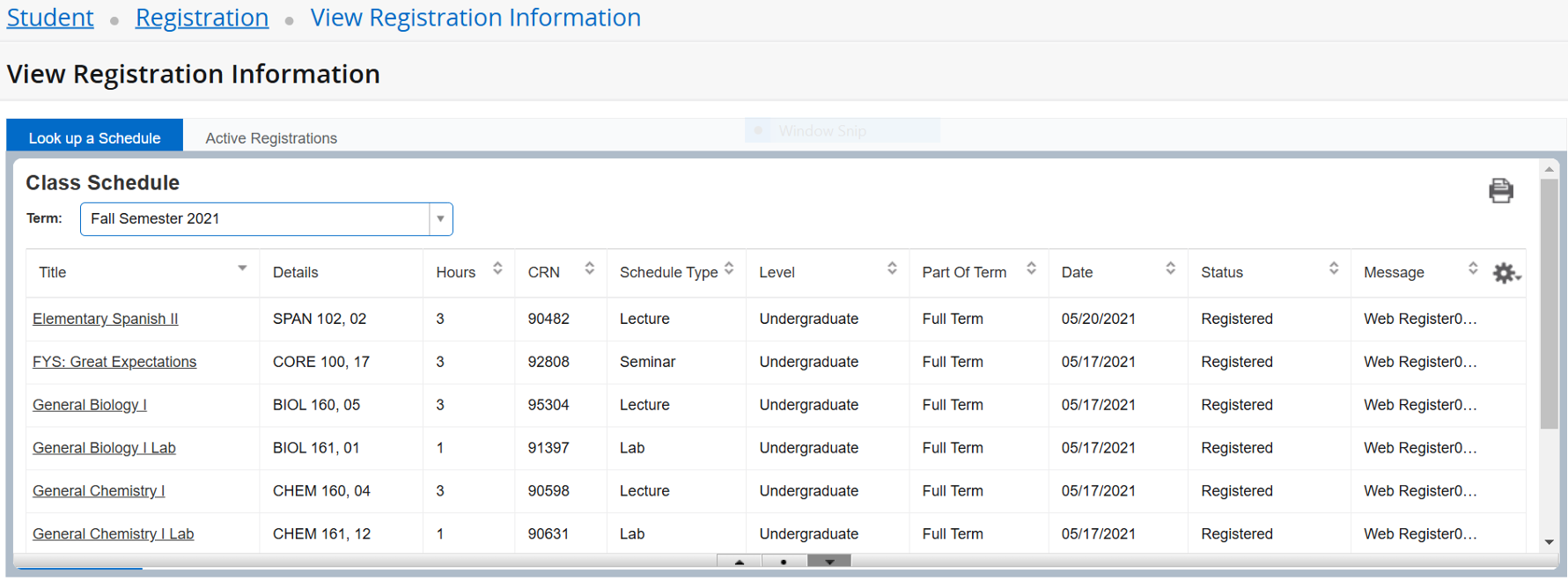
Online Schedule View
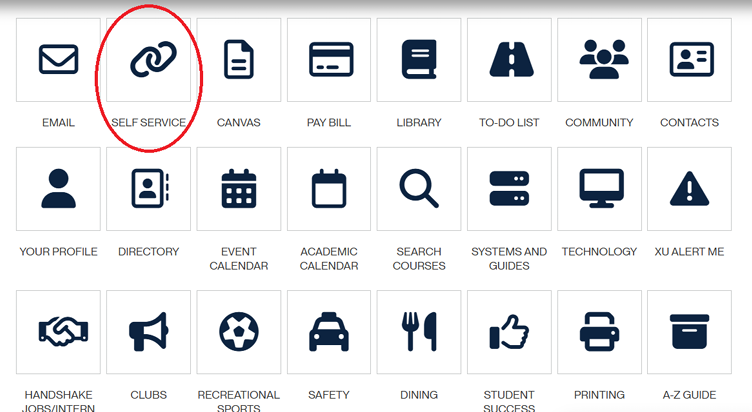
You can view and print your class schedule online via the Student Hub > Self-Service, or via the Xavier Mobile App.
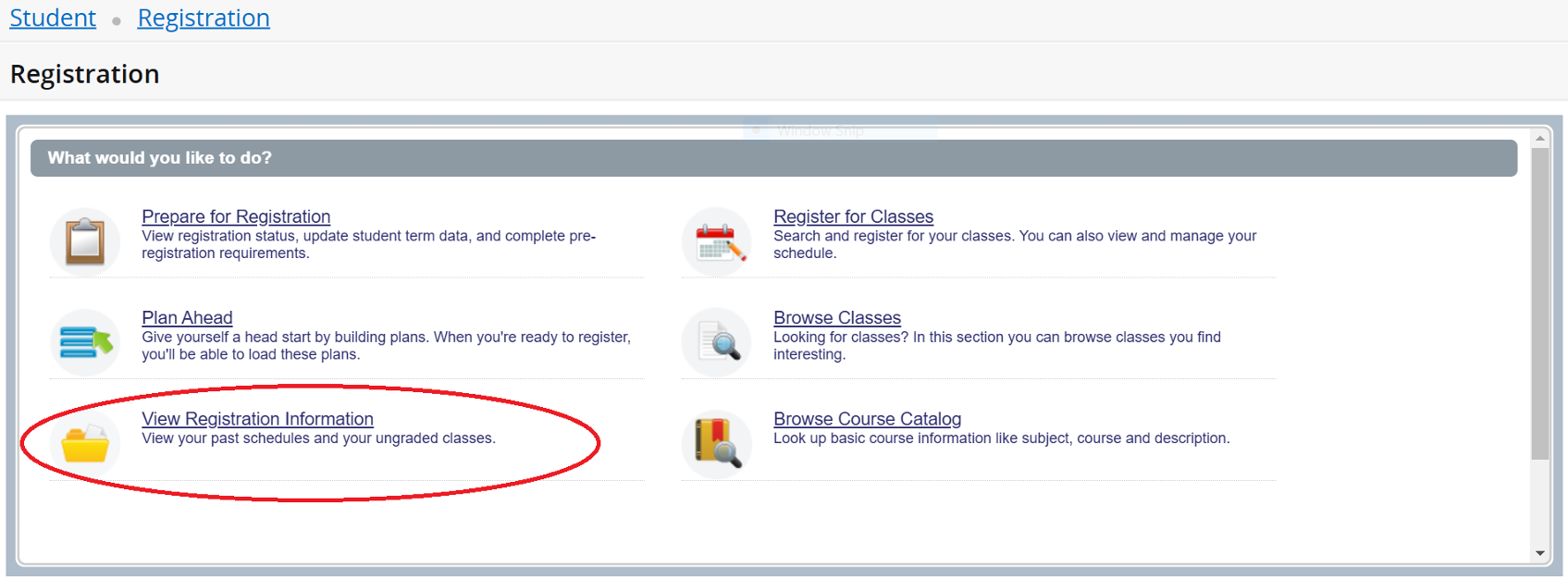
Starting at the Student Hub, navigate to “Self Service,” and then “Registration.”
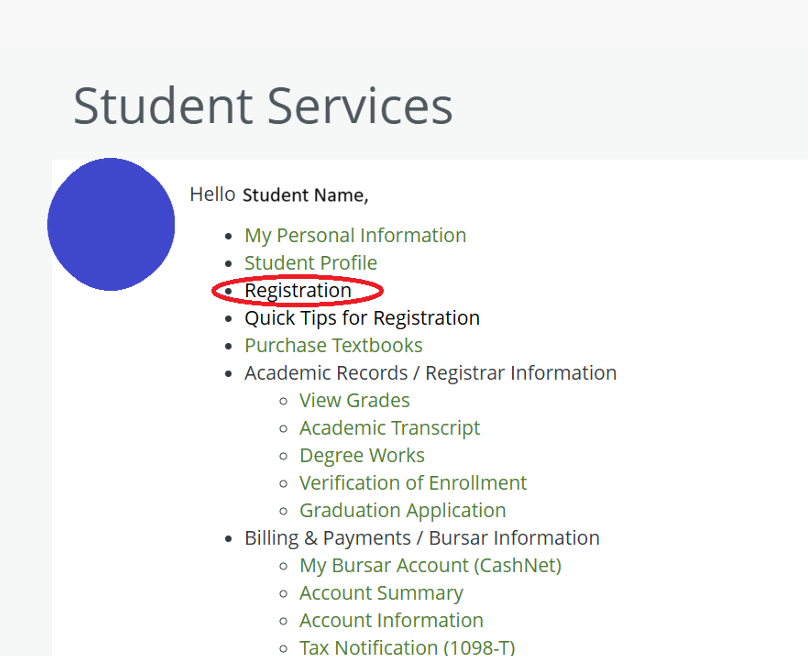
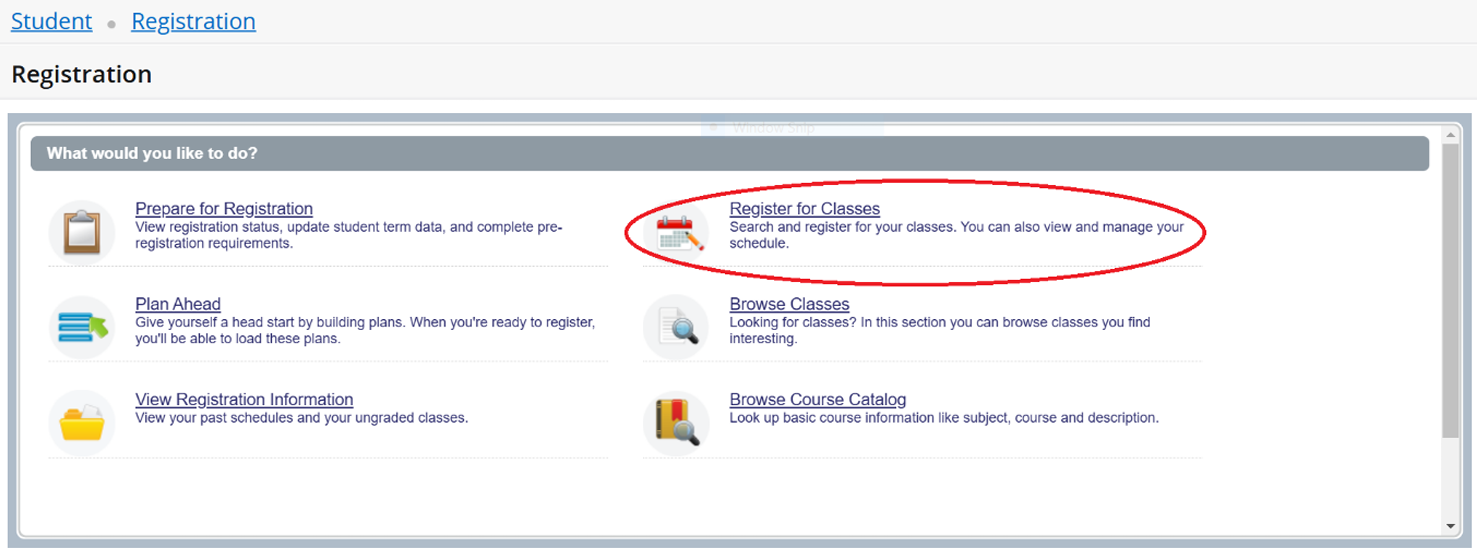
From there, there are two ways to view your current schedule.
1 – Start by clicking “Register for Classes”
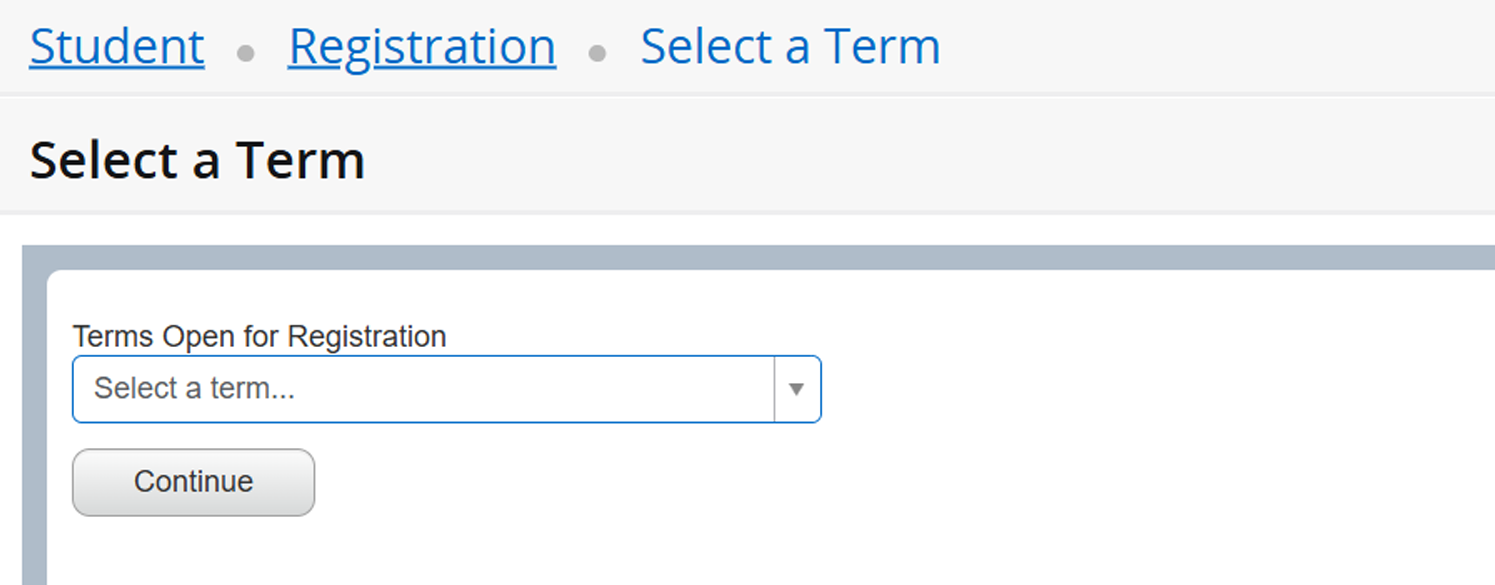
Choose the current term from the drop-down list and click continue
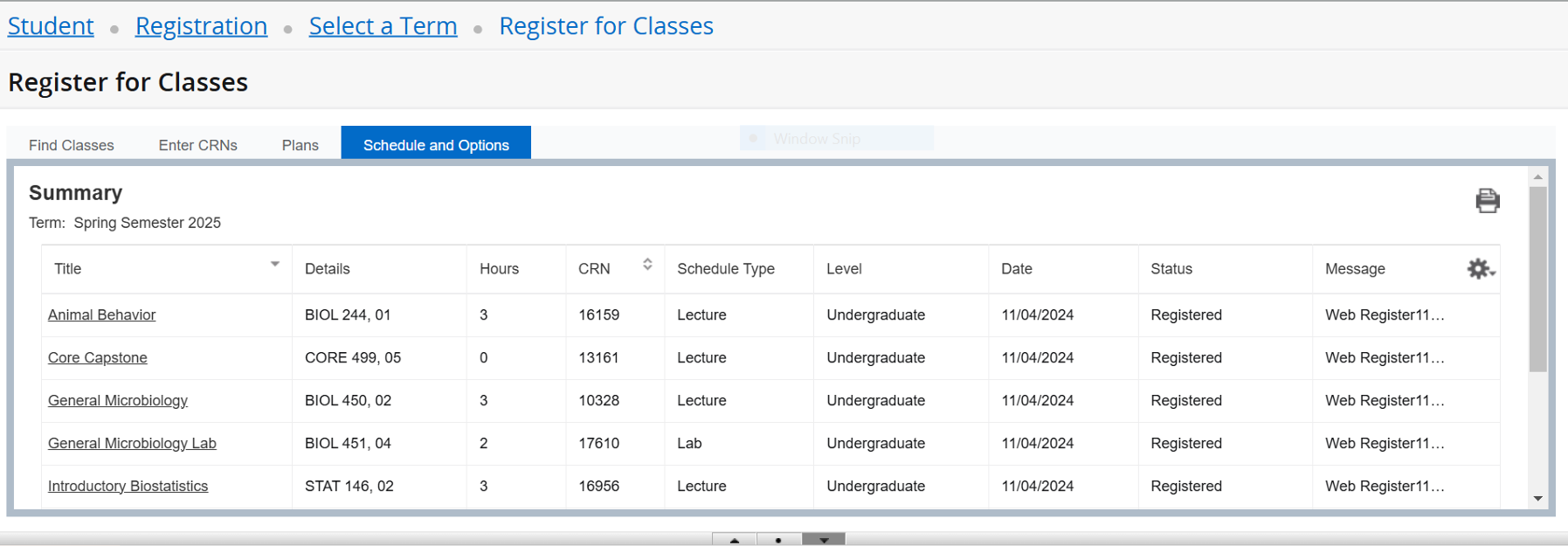
Use the Schedule and Options tab to view, print, and/or email your schedule.
Choose the appropriate term from the drop-down list
This will then generate your schedule to view, print, and/or email.