ChemDraw Upgrade Guide
To upgrade to the newest version of ChemDraw:
1. Browse to revvitysignals.flexnetoperations.com.
1. Login with your Xavier email and password previously created when you downloaded
ChemDraw for the first time.
2. In the Downloads menu on the left, Click “List Downloads.”

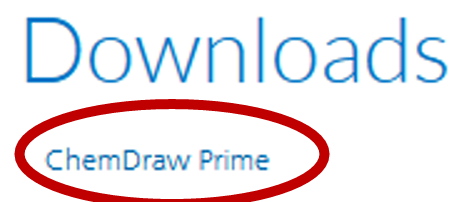
3. Click “ChemDraw Prime.”
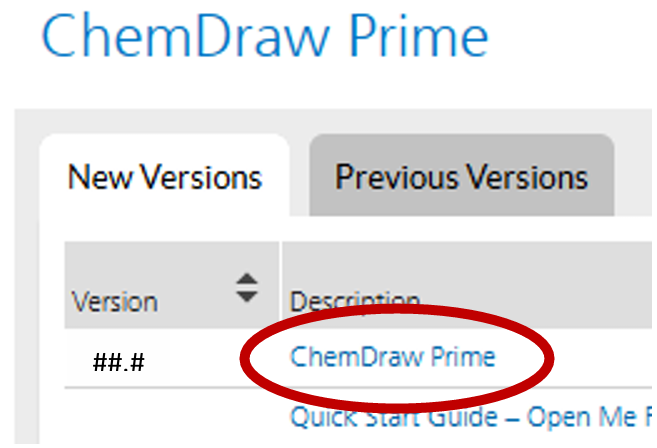
4. In the table, under the “New Versions” tab, click “ChemDraw Prime.”
5. In the File Name column, Click the file name corresponding to the PC or Mac version of
ChemDraw, depending on your computer.
a. (optional) Download any other files you wish to download.

6. Browse to your default download folder.
7. Run the installation program you just downloaded.
8. Follow the prompts to upgrade ChemDraw on your computer. Default values should be fine.