ChemDraw Install Guide
To Download ChemDraw for the first time:
1. Browse to connect.revvitysignals.com/sitesubscription/Register.aspx?FlexeraAccountId=20546.
2. Fill out the form to register, using your Xavier email address (do not change the Account ID).
3. Follow instructions in email to verify the account.
4. Follow instructions in second email to set up an account and password.
a. If not redirected automatically, Login to revvitysignals.flexnetoperations.com.
5. In the table, find the entry with the start date Mar 10, 2025, and click “Download Now.”

6. Write down the highlighted activation code – you will need that later (you can always return to this page to get
the activation code later, if needed).
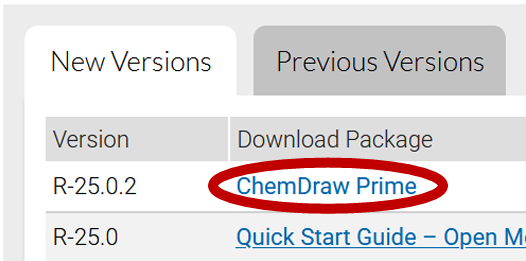
7. In the “New Versions” tab, click “ChemDraw Prime.”
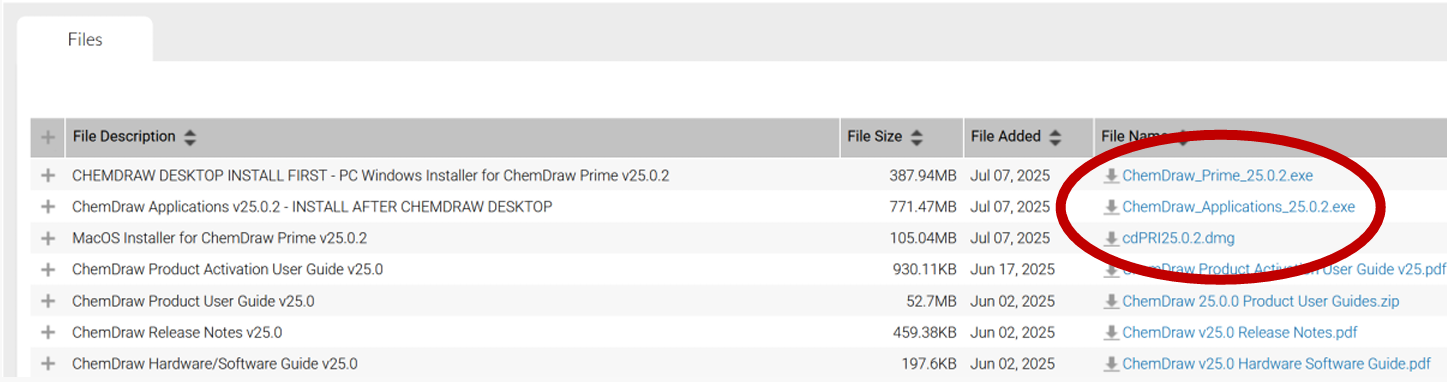
8. Click the file name to download the PC or Mac version of ChemDraw, depending on your computer.
a. (optional) Download any other files you wish to download.
9. Browse to your default download folder.
10. Run the installation program you just downloaded.
11. Fill out the Activation Form.
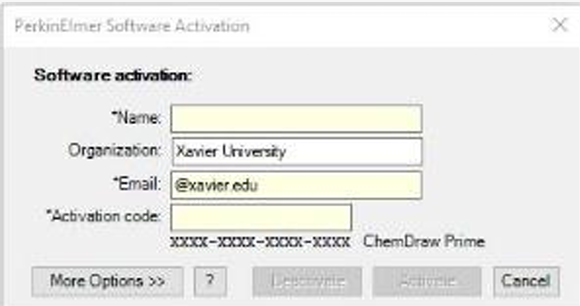
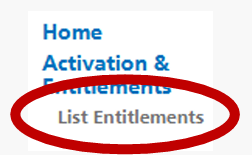
a. If you didn’t write down the activation code earlier, the activation code can be found in the List
Entitlements on the left side of the website.
b. Copy the Product Activation Code, and paste it into the Activation Form

12. Follow the prompts to install ChemDraw on your computer. Default values should be fine.